
Note: Please access the app using the Chrome browser.
Once you’ve flown a site and collected images, you’ll need to upload the images to the Raptor Maps Platform.
A full video walkthrough of the uploader tool can be viewed here.
Use the upload link found in your order to upload the images:
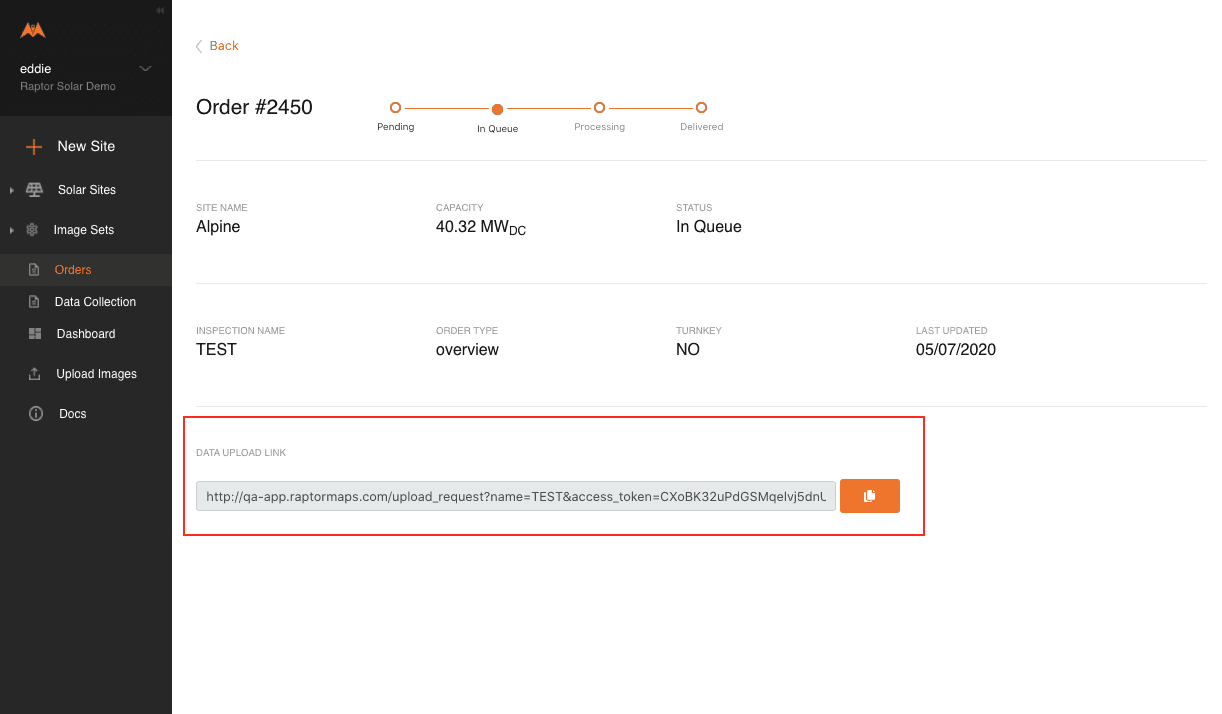
Limit each upload session to a maximum of 5000 images. For uploads containing more than 5,000 files, the uploader automatically splits the batch into multiple upload sessions in the queue.
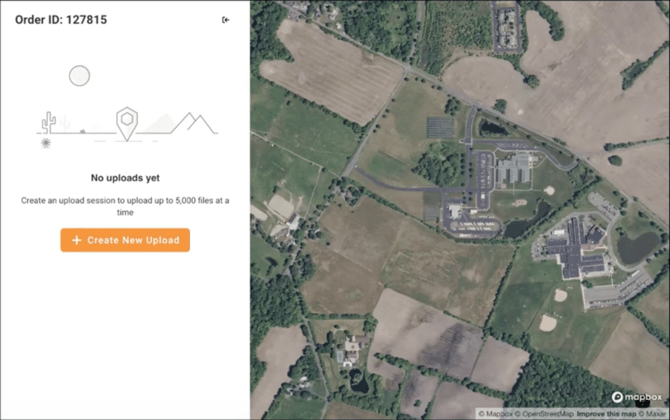
Select the +Create New Upload button:
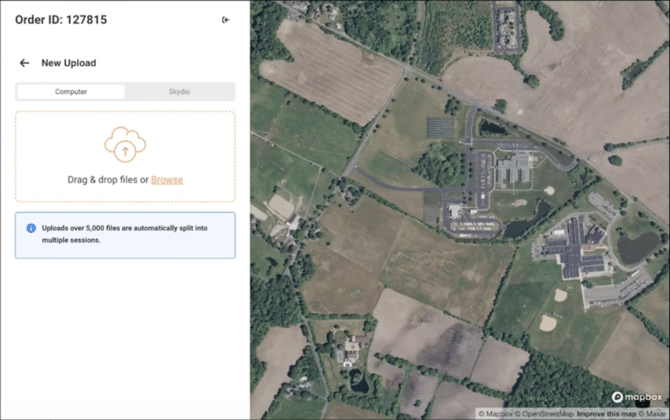
Add your images from their destination folder or direct-drag them into the upload box:
The images are NOT uploaded yet. At this point, the images' metadata is extracted and all photos with GPS positioning are validated. If duplicate files are found, the uploader will automatically exclude them from the upload. You will see the locations of the gray image pins on the map:
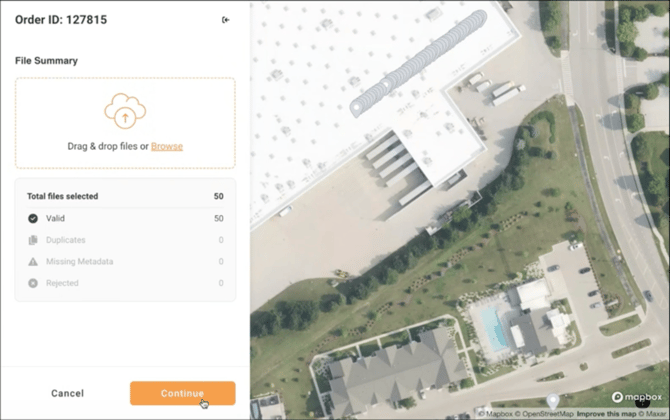
Select continue, and update the upload name. If you are not logged into your Raptor Maps account, you will also need to input your email:
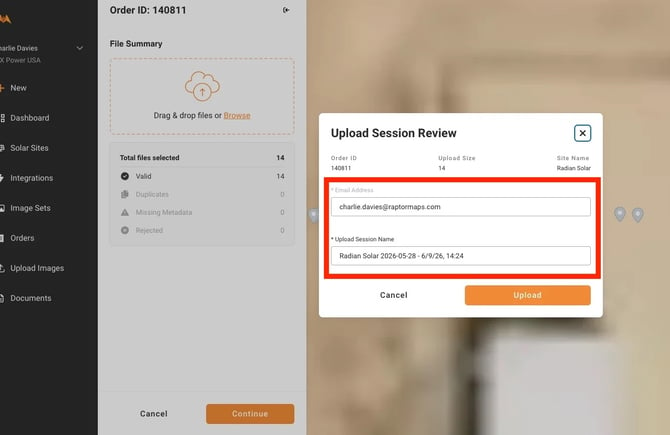
Use the following convention to name the upload:
“Site Name – Flight Type – Folder Info” i.e. “Megawatt’s Solar Farm – IR/RGB – Folder 1/7”
If you are uploading oblique imagery, use “OBLIQUE” as the file type i.e. “Megawatt’s Solar Farm – OBLIQUE – Folder 1/7”
If you are uploading data to enable creation of an orthomosaic, use “ORTHO” as the file type i.e. “Megawatt’s Solar Farm – ORTHO – Folder 1/7”
Note: We need the full site name to match upload sessions with the associated report; do not abbreviate it.
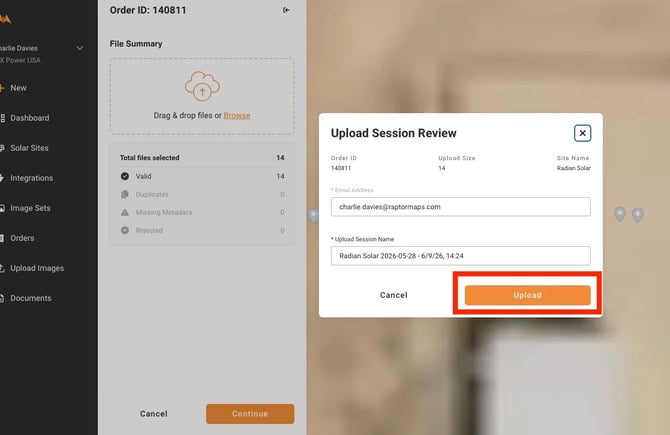
Next, select Upload:
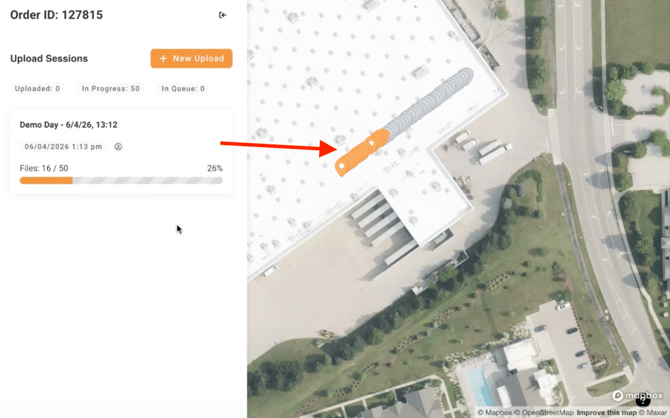
As your photos are uploaded, the gray image pins on the map will turn orange as the upload progresses:
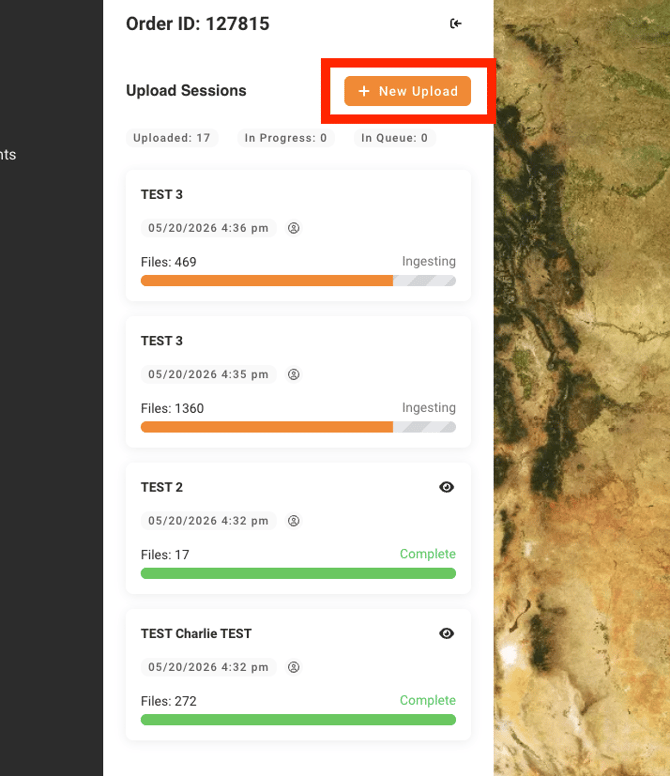
You can upload multiple batches of images at once, by selecting "+New Upload" in the top right corner:
Note: You will not be able to open a new tab/window with the same upload link, as you are able to utilize multiple upload sessions
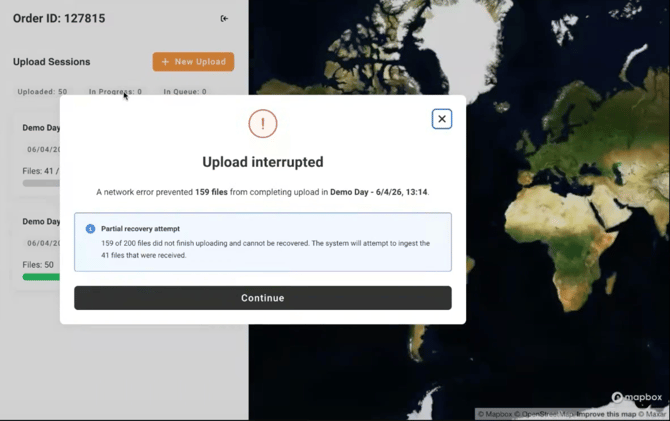
If you lose connection or the upload is interrupted, the files that have already been uploaded will continue to be ingested. You will only need to upload the remaining images, or drag and drop the same folder and it will automatically remove the duplicates (if they've already finished uploading/ingesting.)
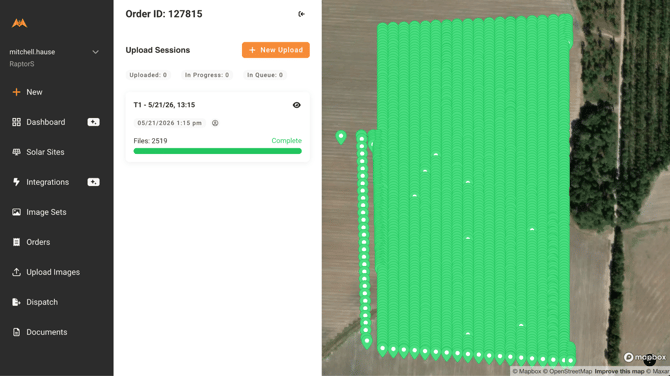
Please confirm all images for the session have been uploaded. The pins will be green and there will be 0 in progress or in the queue.
Uploading from Skydio
To see how to upload data from Skydio, click here.