
NOTE: To use the Circuit Block Order Submission, a site must have been digitized previously. To learn more click here.
Access the Solar Site
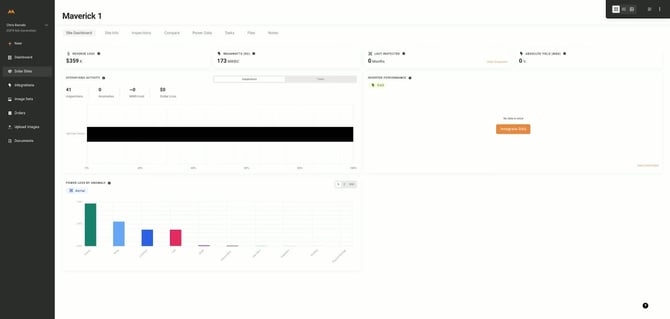
- Begin by navigating to the site dashboard view, digital twin view, or table view of a previously delivered inspection.
Select the Inspection Order Page
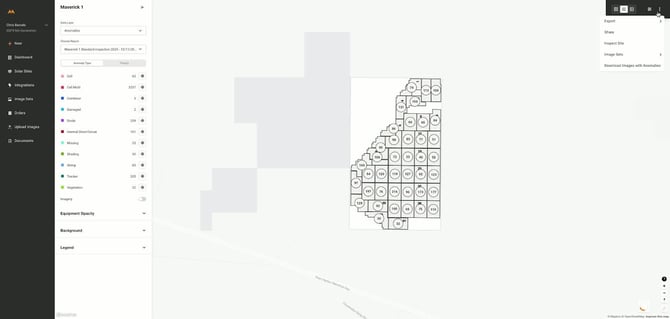
- Click on the kebab menu in the top right corner.
- Choose 'Inspect Site' from the dropdown menu.
Enter Inspection Details
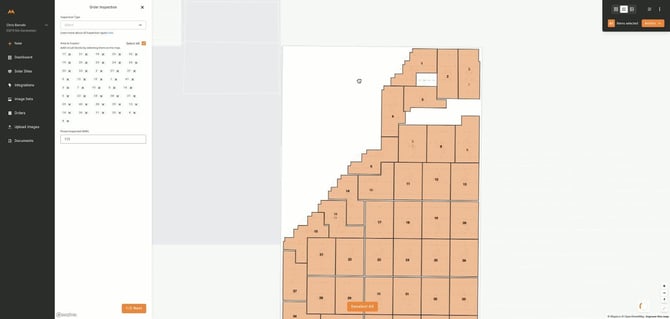
- Select the Inspection Type from the dropdown menu
- For partial inspections, deselect the full site option and select specific circuit blocks on the map view. You can also choose to inspect all blocks if needed.
- NOTE: For partial inspections, users will need to adjust the MW of the inspected blocks in the ‘Power Inspected’ field
Enter Inspection Name and Data Capture Details
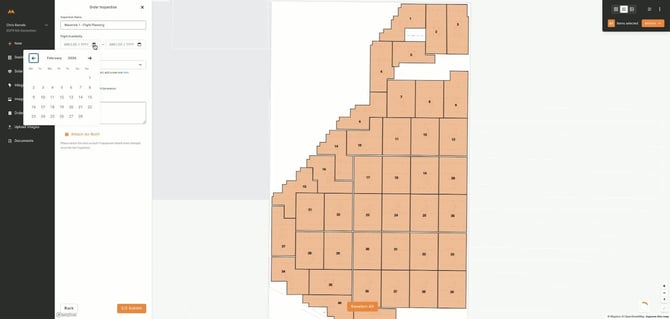
- Optionally, edit the Inspection Name
- Enter the name of the person requesting the inspection from the drop down.
- If the user is not listed, follow the link to add a new user and their contact details.
Select the Data Collection Organization
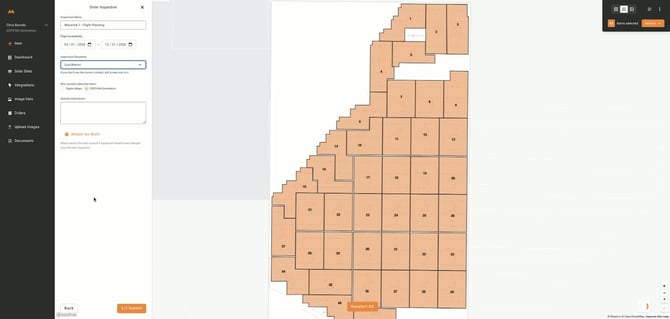
- Choose who will be collecting the data:
- If data capture is subcontracted to Raptor Maps or there are Raptor Sentry units installed on the site, select Raptor Maps.
- If you will collect and upload data yourself, select your own organization.
Add Special Instructions and Attachments (Optional)
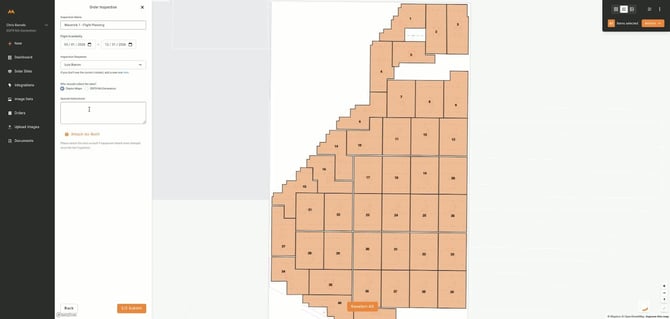
- Optionally, add any special instructions relevant to the inspection.
- Attach an as-built document if there have been material changes to the site's layout or equipment.
Submit the Inspection Request
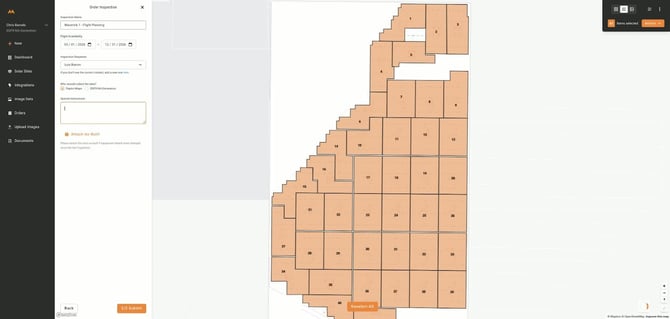
- Review all entered information for accuracy.
- Click 'Submit' to finalize the inspection request.